Adding Banners To Food Pics Using Powerpoint
Sometimes you feel your pictures need some zing, something extra to take it to the next level. The answer may not always be picasa, or photoshop or other editing software. It could even be Powerpoint!
When I started off food blogging, I used powerpoint to add watermarks, borders and banners to my pictures. It was simple and I used powerpoint so much at work that it didn't seem like much of an extra effort to me. As soon as Picasa came up with the feature to add text to pictures, I slowly moved away from powerpoint.
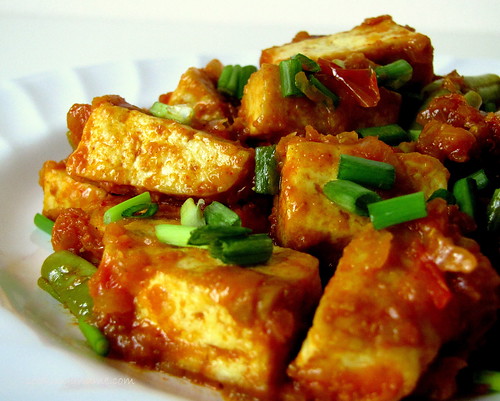
But, I still use it to jazz up my pics a bit, add a border and make it look a bit different, maybe like a cookbook cover which is what a lot of you said after seeing this picture of mine :)
So let's see how we can make this picture..
.. look like this in a few easy steps.
I recently upgraded to MS Office 2007 so this tutorial is using 2007. That really shouldn't be a problem because all the features we are using to do this is very much available in 2003 and older versions too. The menu options may be different so I have tried to highlight those here. I am doing this from memory so please bear with me :)
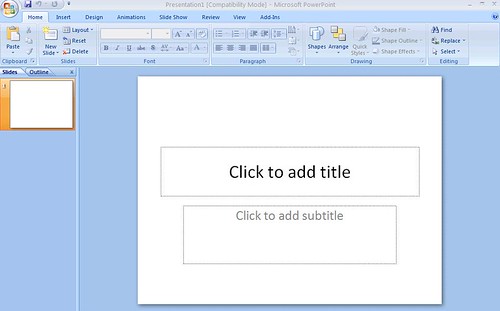
1. Ok so let's start with opening Powerpoint (Ppt).
Ppt 2007 users click on the ppt icon from your start menu.
Ppt 2003 users.. err.. do the same :D (ok, lame joke)
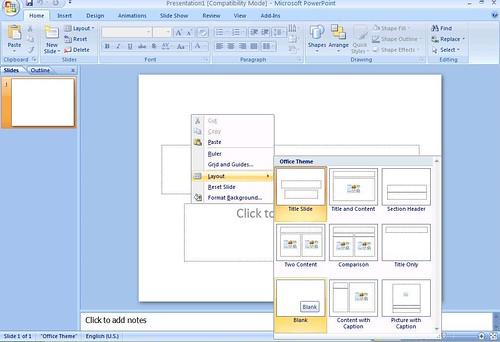
2. I usually like to work on a plain slide but that's just me. This is not a necessary step but just nice-to-do. So if you'd like to work on a plain slide,
Right click on the slide --> Layouts --> Choose blank layout
For 2003 users, the layouts will open on the right hand side of the page.
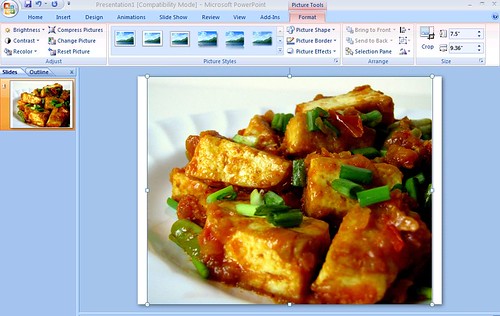
3. Next, we need to open the picture we want to edit. For that, click on,
Insert --> Picture --> and browse for the picture in your computer.
For 2003 users, the options are the same except that you would need to specify 'picture from file' before you can browse and add it on.
So here's our picture, ready to be worked on. Notice the extra white spaces from the slide on both sides? Don't let that bother you too much, we are going to get rid of it at the end.
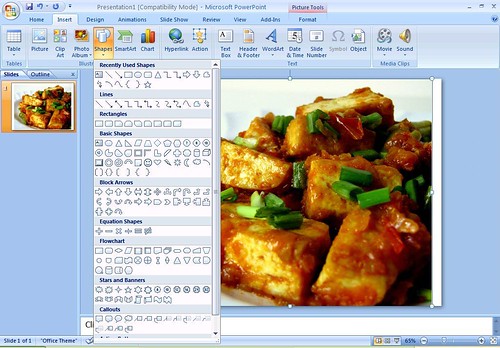
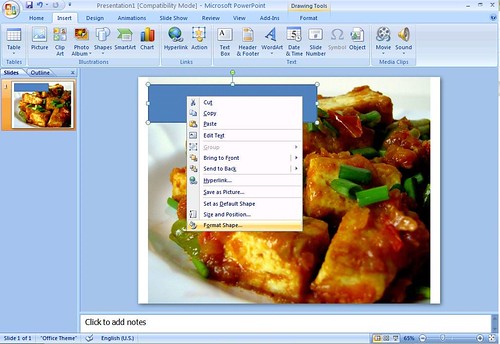
4. Next, we need to add the basic rectangular banner on which we can type our text. For that, go to,
Insert --> Shapes --> and pick the rectangle from the list
For 2003 users, you should be looking for basic shapes. You will find the rectangle in a toolbar at the bottom of your slide. Click that and we are good to go.
5. Drag and draw the rectangle to the desired size.
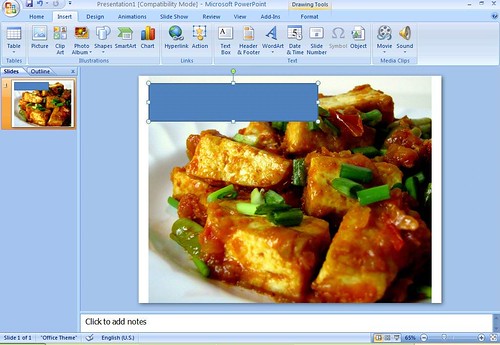
You can decide to put it in the top centered, to one side like I have done, at the bottom to the right. This is where you can let your imagination run wild and come up with unique ways to make your pics stand out.
6. We have the basic shape in place, so now its time for the fun part! The first and most important thing is to adjust the transparency of this box so that it doesn't look like its blocking out a part of the picture.
To adjust transparency,
Right click on picture --> Format shape 
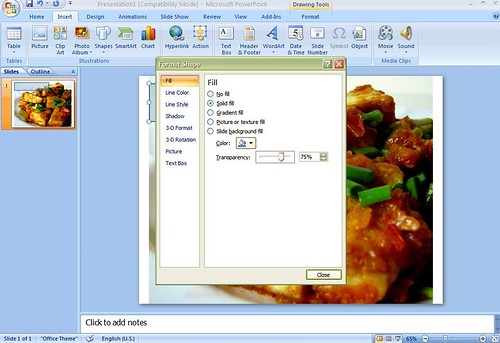
You'll see this box pop up:
Choose fill from the left hand side and move the transparency slider to the right. I have chosen 75% here.
You can also change the colour of the box (just above transparency slider) to match your picture (shown below)
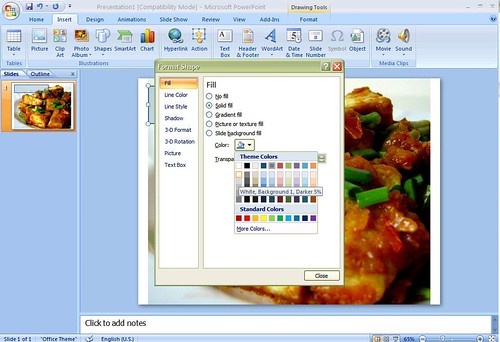
2003 users, right click on the picture. If I remember correctly, you should see an option to 'Format Picture'. If not, use the Format menu option and choose picture.
7. Next step that's quite small but significant is to change the outline properties of the box. Ppt 2007 automatically chooses a blue box as we saw above and changing the fill colour and transparency still leaves the outline of the box in a dark blue.
To change this, choose Line Color from the 'Format Shape' box as below.
You can either pick a different colour that matches the box colour above ..
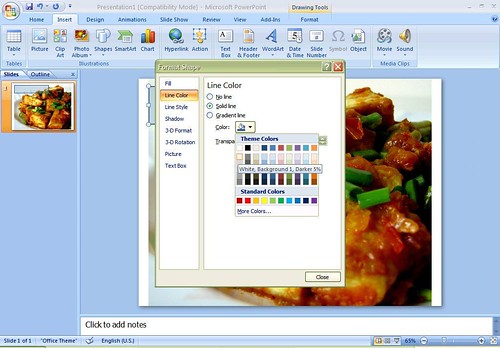
.. or choose 'No Line' so that the box just becomes seamless (the outline matches the colour of the box). This is the option I always choose.
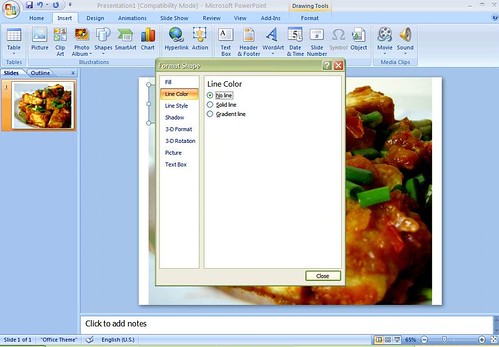
Here is our what we are left with. I still remember how excited I was the first time I did this!
8. To add text, just click on the box and start typing. Ppt 2007 defaults the text to a dull white.
The options to edit the font are endless. Choose a font and colour you feel complements your picture the best.
I chose a boring maroon and an even more boring font because I was a bit tired of taking screenshots. Forgive me.
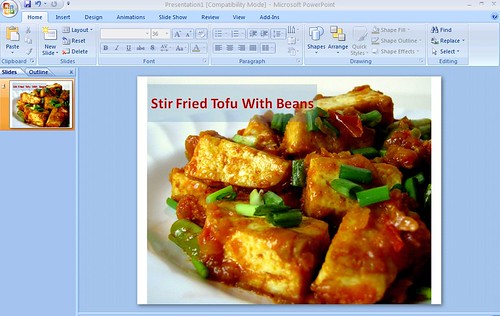
9. We are almost done! Let's save the file. Since this is a powerpoint presentation currently, you will need to save it as a picture. For this,
Click on the windows icon in the top left corner and choose Save As --> Name your file and from the drop down below it, choose JPEG format.
For 2003, its File --> Save As..
Voila! Done!!
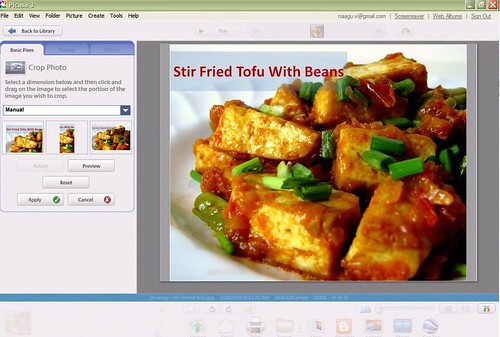
10. But wait, your picture has that white space on both sides, right? No worries.
Open it in Picasa.. (notice the white bars on both sides?)
.. and crop it off!!
Go to File --> Save as and save your cropped file.
You will feel really happy when you open your saved file and see this! Especially if you are doing this for the first time, trust me!
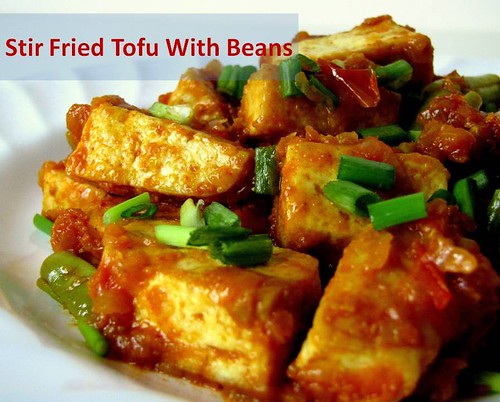
I know this sounds like a lot of steps but if you know your way around in powerpoint, its really not hard.
Please let me know your thoughts on tutorial and if I have made any silly mistakes in the 2003 instructions. I would appreciate it if any of you who have Ppt 2003 can let me know the exact options to do the steps.
Some of the screenshots may be fuzzy because I used the age-old print screen option. I do funny things when I am tired or lazy or cranky.
For previous posts in the Food Photography Basics series, please click HERE.
As always, if you try this out, do drop a line in the comments and I would love to see it!


Hi Naga, this is one thing I will try for sure! Thank you so much for all the effort. I love your pic:-)
ReplyDeleteGood info! Thanks for sharing....!!
ReplyDeleteI saw this Gobi Kheema yesterday only,came from google search... and was admiring the picture!
ReplyDeleteI donno abt banner,but the picture's lighting and all other stuffs make it looks like a cookbook cover!
should try a hand on power point,thanks!
Am not sure abt using PP, a lot of other softwares are there, But would definately say the pic. is really looking like to be one in cookbook cover.
ReplyDeleteReally appreciate the way you had put in so much effort to explain every step in detail. Thanks!
ReplyDeleteThe way you have painstakingly explained each step is so helpful and generous.Never knew that good old powerpoint could be used to jazz up food pics.A big thank you!
ReplyDeleteWow Nags..never knew Powerpoint could be used to dazzle up and modify the pictures.Picasa is easier I guess..;-).I tried doing it as and when I read through your step-by-step and didn't find it that difficult.Thanks to you for taking pains to do this..you ROCK!!!
ReplyDeleteThanks for the step wise presentation,a very useful tutorial for beginners like me and will try it out soon
ReplyDeletethanks nags for clear explanation,u r excellent:)
ReplyDeletetwo words...Love U!
ReplyDeletePerfect!! thanks...u are the best..esp. for lazy ppl. like me who will not make an effort to learn or poke around to make my pics look good....this looks easy...will give it a try for sure....
ReplyDeleteWell even I who is a real computer dumbo can understand this, thankyou for the easy explanation.
ReplyDeleteExcellent work Nags!!! I really didn't knw that we can use PowerPoint for banner. Thanks a bunch for sharing your knowledge. :)
ReplyDeleteThanks girl! Trisha has power point for college classes, I have never tried it. I think Picasa lets you do that too. Great step by step lessons, great post! :))
ReplyDeleteOh I didn't know this! :) Love it!
ReplyDeleteI love this dish of yours. Tried it :)
thanks for the tutorial,Nags.I have XP,never thought of using PPT for my pic labeling,will try:)
ReplyDeleteSigh...You put so much effort in teaching us to go ahead and post that cover book pic on our blogs..Admirable. Now can I ask for a favour? Shall I send you some of my really lifeless food pics and how abt u transforming them to beauties?? Ouch!!! sorry am just too lazy..but powerpoint will definitely give it a shot..never knew it could be done on that! Thanks for sharing ur photography secrets:)
ReplyDeleteGreat tutorial Nags.. Never thought of using powerpoint for adding banners. That means mommy is going to be stuck at the computer formatting pics for a little longer. ;-)
ReplyDeletewhy haven't i thought of ppt before.. :( I was trying to do this in MS paint... PPT is much easier and a familiar turf for me... Thanks for the quick lesson...
ReplyDeleteWow..thats a great tutorial..Btw whenever i look at your tofu stir fry it makes my mouth water..I should try this soon :)
ReplyDeleteseems like a lot of steps but looks nice in the end :)good info.
ReplyDeleteThat's informative. Thanks, Nags!
ReplyDeleteI actually like your first pic more than the second, Nags. What I'm trying to say is that putting borders/banners kind of takes away from the beauty of the pic itself- but that's just my opinion. :D
ReplyDeleteBut your PowerPoint tutorial is definitely very informative. :)
Hey Nags, I have been reading your series on food photography from beginning and your blog from quiet a while. I really appreciate all your efforts. I really need to improve on my photographic skills for my blog and your series is really useful for novice like me. I think that actually you can publish small booklet or crash course type of book on food photography.
ReplyDeleteVery helpful post Nags...thanks for all the effort.
ReplyDeleteYou are doing a great job Nags. It's definitely a boon for technically challenged people like me.
ReplyDeleteTBC - I know what you mean! Sometimes I add banners and then remove them because I like the pictures plain. This is not for every picture, for sure but it helps sometimes, u know :)
ReplyDeletegreat explanation, good effort
ReplyDeletevery useful post..thank you for ur patience and guidance
ReplyDeleteThanks for another really useful post
ReplyDeleteThats a great one!...you are rocking girl!
ReplyDeleteThanks for those really useful tips and a great tutorial!
ReplyDeleteDespite using Powerpoint so much, I never knew this!
ReplyDeleteThanks.
You are so right Aparna. even if we use the program so often we find it hard to think up useful things like with powerpoint. i used to give ppt skills training in my previous role in the company and that's when all of this hit me. There are some more tricks i used to do but now i just use picasa cuz its so much easier!
ReplyDeletethanks for sharing so useful tips on photography and using powerpoint ..
ReplyDeletehugs and smiles
Read the whole thing thru Nags ... and won't go away without saying a word. For now ... just thanks for such info ... never knew PP can be uused so effectively!
ReplyDeleteWill come back later to say more thanks. :-)
Thanks a lot for sharing good knowledge.U have put lot of pain and time for this..really appreciate that.
ReplyDeleteHi Naga, Your article on Food Photography is just too spectacular like your pics. I finished reading all the posts in one sitting. I have so much information now, want to go back home and start experimenting with my camera.. Thanks for sharing such wonderful piece of info in spite of your bad health. Happy Clicking and Happy Cooking..
ReplyDeleteRV, thank you for your kind words of encouragement. Glad you liked the articles on food photography for food bloggers. Hope you drop me a word once you try some techniques :)
ReplyDeleteLove ur blog.
ReplyDelete2 requests,
1. can you have your chinese and sinporean recipes ctagorized so i can easily search them?
2. Do you add your blog name to the pic the same way as decribed above
Hi Swarna, I will surely categorize my chinese and singaporean reipes asap :)
ReplyDeleteYes, you can use this method to watermark your pictures but these days I use picasa for it. You can also use photoshop if you have it. usually, all photo editing softwares have a watermark feature, some tool to add text to your picture.
Nags,
ReplyDeleteVery sweet of you to respond so soon. Love your recipes. I have been a bit lazy with my blog, but wanted to do something different thats the reason for illustrations here and there instead of pictures .
very lovely post..i neva knew we can edit in ppt..good post!!! u have put loads of hard work!!! hats off!!!
ReplyDeleteHi Nags,
ReplyDeleteI found your tutorial immensely helpful. I had a question? Adding your site name as a copyright on the picture, is that same as watermarking your picure (duh...I am a little confused here). Let me know.
Thanks
Ash.
Yes Ahwini, its the same thing. watermark is just the name given to adding the owner's name or brand logo to his or her work :)
ReplyDeleteWhoa! Thanks Nags, jargons got me confusing. I liked your post on Amma's garden. It was a treat seeing the Drumstick tree after a long long time.
ReplyDeleteYes Ahwini, its the same thing. watermark is just the name given to adding the owner's name or brand logo to his or her work :)
ReplyDeleteGreat tutorial Nags.. Never thought of using powerpoint for adding banners. That means mommy is going to be stuck at the computer formatting pics for a little longer. ;-)
ReplyDeleteThanks girl! Trisha has power point for college classes, I have never tried it. I think Picasa lets you do that too. Great step by step lessons, great post! :))
ReplyDeletePerfect!! thanks...u are the best..esp. for lazy ppl. like me who will not make an effort to learn or poke around to make my pics look good....this looks easy...will give it a try for sure....
ReplyDeleteWow Nags..never knew Powerpoint could be used to dazzle up and modify the pictures.Picasa is easier I guess..;-).I tried doing it as and when I read through your step-by-step and didn't find it that difficult.Thanks to you for taking pains to do this..you ROCK!!!
ReplyDeleteThe way you have painstakingly explained each step is so helpful and generous.Never knew that good old powerpoint could be used to jazz up food pics.A big thank you!
ReplyDeleteI saw this Gobi Kheema yesterday only,came from google search... and was admiring the picture!
ReplyDeleteI donno abt banner,but the picture's lighting and all other stuffs make it looks like a cookbook cover!
should try a hand on power point,thanks!
Absolutely stunning both the use of power point and picassa. The pictures are..(I am at a loss for words)
ReplyDeleteI am sure you will get the picture.
This post is really very useful for a new food blogger like me .
ReplyDelete-Mitu
http://mitu-kitchen-delights.blogspot.com/
hi !! your posts are amazing in helping a blogger>ive been looking all over to learn more about how to publish good looking posts.Can u please tell me how is it thatone can have an attractive looking header for your blog with pictures of your food in it? does one have to edit it in powerpoint? like for eg,the place where u have put edible garden if i wanted to put pictures of my food thenn where do i make these modifications
ReplyDeleteChar, I will try to do a post on this but may take some time. Meanwhile, a google search may get you good results
ReplyDeleteI alwys thought how people do this... I knew this thing but nver came in mind. Lazy mind :P)
ReplyDeleteThnx for posting
Nupur
http://uk-rasoi.blogspot.com
May I suggest adding a simple like button on your blog. Especially for those who dont have a stumbleUpon id nor want to leave a google id. Else we will be like ghosts or stalkers on your blog.
ReplyDeleteIf you mean the facebook like button, i do have that alongside stumbleupon and google+ buttons :)
ReplyDelete